Why multi-stop planning gets hard so quickly
With one vehicle and six stops, you can try a few orders in your head and pick the shortest. Add a second vehicle and the question changes. You are no longer only choosing an order. You are choosing which vehicle takes which job, and every swap changes both routes.
Promised times make it harder again. The shortest loop around town is useless if it gets a technician to a 9:00 appointment at 10:15. Most offices solve this by habit: the same driver covers the same side of town, and the morning planner nudges things until nothing looks obviously wrong. That works until the day is full, someone is off sick or a big job runs long.
Step 1: Write down what can't move
Before drawing any route, list the fixed points for the day:
- Appointment windows. Which jobs have a set time or a window, and which can happen any time?
- Job lengths. A filter change and a full install don't take the same time. Use your own history where you can.
- People and skills. Who is working, and which jobs need a particular person or licence?
- Start and finish. Where each vehicle starts, and the latest anyone should be out on the road.
This list is the part people skip, and it is why routes that look tidy on a map fall apart by lunch.
Step 2: Split the jobs by area
Group the day's jobs into clusters that sit close together. A simple way is to look at the map and draw rough areas, one per vehicle. Then move jobs between areas to balance the work, using job lengths rather than job counts. Four short visits can take less time than one long one.
Keep any job that must go to a particular person with that person, and build their area around it.
Step 3: Put each route in order
Within each area, order the stops so the vehicle isn't doubling back. Start with the appointments that have the earliest fixed times and fit the flexible jobs around them. A useful rule is to follow a loop rather than a zigzag: out from the start point, round the cluster, and back.
Step 4: Check the times, not just the miles
Walk each route through the day with real drive times and job lengths. For every stop, ask whether the vehicle arrives inside its window. Then check the finish time. A route that ends at 7:30 pm is not a good route, even if it is short.
If a route fails, move a flexible job to another vehicle and check both again. This is the slow part by hand, because each change affects two routes.
Step 5: Compare it with your usual plan
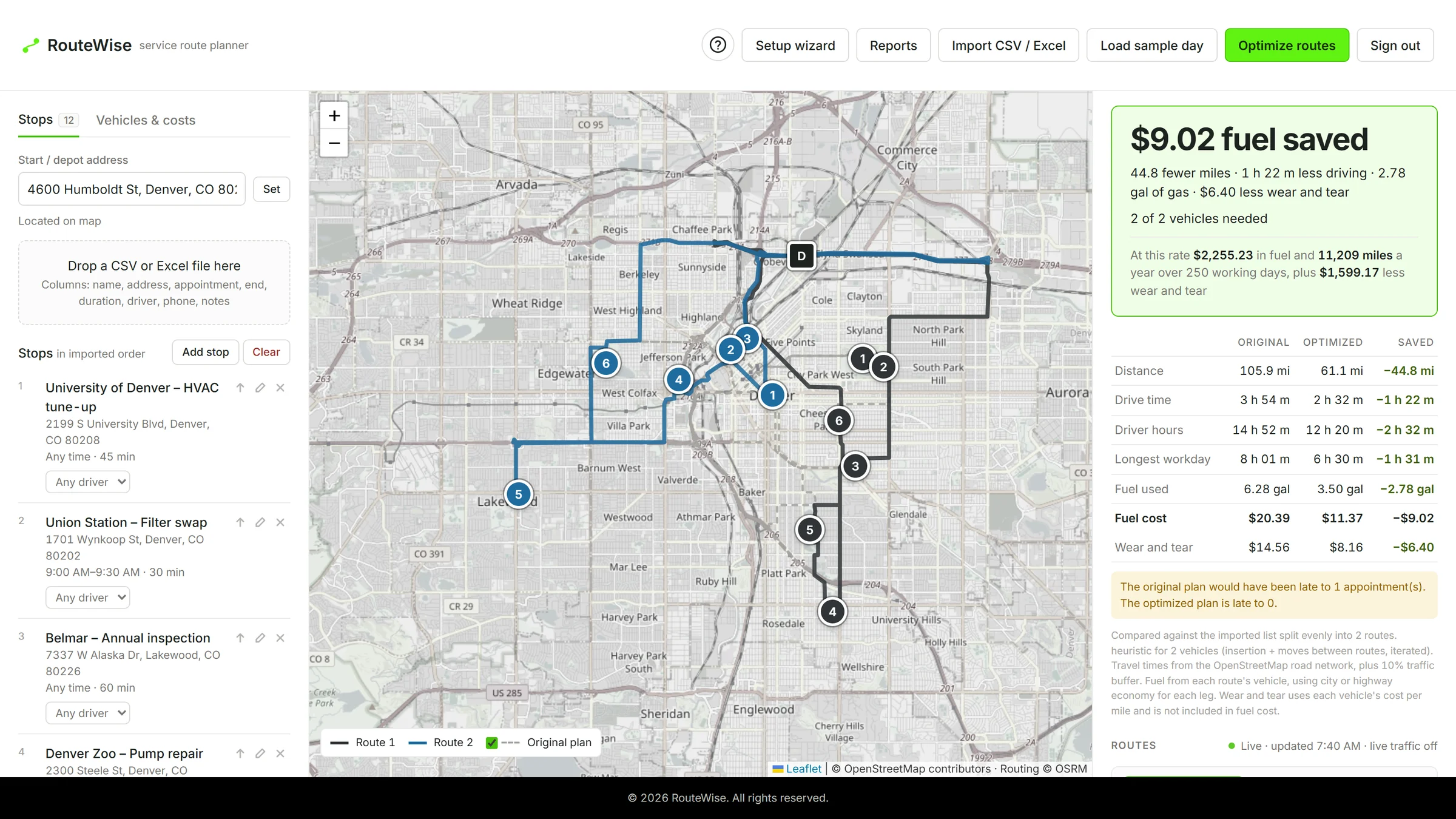
Write down roughly how you would have split the day without the method: maybe the same driver on the same side of town, or jobs shared out evenly. Then compare miles, drive time and late arrivals. This tells you whether the extra planning is paying for itself.
On our own sample day of 12 Denver stops and 2 vehicles, splitting the stops evenly between the vehicles gave 105.9 miles and 3 h 54 m of driving, with one late appointment. Planned properly, the same day came to 61.1 miles and 2 h 32 m, with no late appointments. Your numbers will be different, but the gap between "split evenly" and "planned" is usually where the savings are.
When to hand it to software
The method above works for a few vehicles. It stops being practical when you have more than a handful of vehicles, many timed appointments, or a day that changes after it starts. The number of possible orders grows very fast with every stop, and checking each change by hand eats the morning.
Route planning software does the same steps: it reads the fixed points, splits the jobs, orders each route and checks every window, but it tries far more combinations than a person can. RouteWise also shows each plan next to your original one, so the savings are measured rather than claimed.
A quick checklist for tomorrow
- List every job with its window, length and any set driver.
- Draw rough areas, one per vehicle, balanced by hours of work.
- Order each route as a loop, earliest fixed times first.
- Walk each route through the day and fix any late arrivals.
- Compare the result with your usual way and note the difference.
If you are still planning in a spreadsheet, our guide to when spreadsheet planning stops working covers what to keep and what to change.
Questions and answers
What is a multi-stop route?
A multi-stop route is one vehicle's day with several stops in a set order, such as a technician visiting six customers. Planning multi-stop routes for a team means deciding which vehicle takes each stop and the order each vehicle drives them in.
How many stops can I plan by hand?
Most people can plan one route of up to about 8 to 10 stops by hand. Beyond that, or once two or more vehicles share the jobs and appointment windows, the number of possible combinations grows too fast to check properly, and planning takes a long time.
Should I split jobs by area or by number of jobs?
Split by area first, then balance by hours of work. Counting jobs can leave one driver with four long installs and another with four quick visits. Using job lengths keeps the day fair and makes finish times realistic.
How do I keep appointment times when optimizing routes?
Treat appointment windows as fixed and fit the flexible jobs around them. Check every stop's arrival time against its window before the route goes out. Good planning software only accepts a cheaper route if every window is still kept.
How do I know if my route plan is actually better?
Compare it with the plan you would have made without it, using the same jobs. Look at total miles, drive time, fuel cost and late arrivals. If you don't measure against your own baseline, it's hard to know what the planning saved.