Why spreadsheets are where most teams start
A spreadsheet does several jobs well. It keeps every client's name, address and phone number in one place. It's easy to sort by date or by area. Anyone in the office can open it, and it costs nothing.
For one or two vehicles with flexible jobs, that can be enough. You sort by area, color a few rows, print the list and hand it over.
Signs your spreadsheet has become the bottleneck
The spreadsheet itself rarely breaks. What breaks is the planning around it. Watch for these:
- Planning tomorrow takes more than an hour, every day, and only one person knows how to do it.
- Routes cross over. Two drivers pass each other on the same road heading opposite ways.
- Promised times slip. The plan looked fine, but the 2:00 pm customer got a 3:15 arrival.
- Changes hurt. A cancellation or a new urgent job means redoing half the sheet.
- Nobody knows what a day cost. You can't easily say how many miles or how much fuel a plan used.
- Drivers re-plan in their heads. They ignore the printed order because they know a better way round.
If three or more of these sound familiar, the spreadsheet is doing a job it wasn't made for.
Why it struggles: the maths grows fast
Ordering stops is harder than it looks. With 8 stops there are already over 40,000 possible orders. With several vehicles sharing the jobs, plus appointment windows, the number of combinations is far beyond what anyone can check by sorting rows. A person planning by hand finds a reasonable answer, not the best one, and spends a lot of time getting there.
Spreadsheets also have no sense of drive time. Sorting by ZIP code or street name puts stops near each other on paper, but a river, a highway or a one-way system can make "nearby" a 20-minute drive.
Keep the spreadsheet, change the planner
You don't need to throw the spreadsheet away. The best setup for most small teams is:
- Keep the spreadsheet as the job list for each day.
- Load it into a route planner, which splits the jobs and orders each route.
- Send each driver their route, ideally to their phone.
- Keep the planner's record of what each day cost and saved.
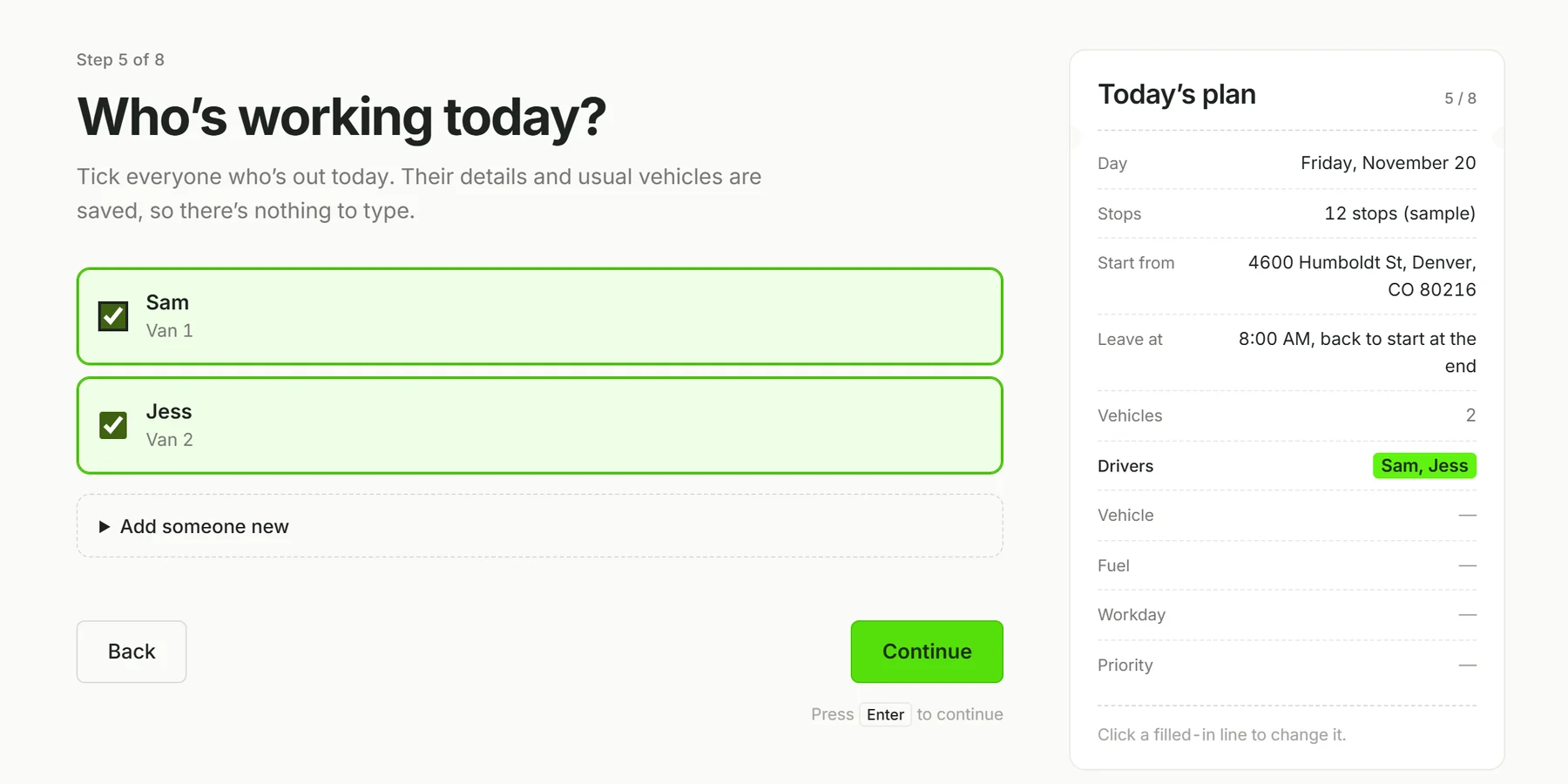
RouteWise works this way. You bring in a CSV or Excel file of the day's visits, tick who's working, and it plans each vehicle's route while keeping every appointment. A template is included, and drivers, vehicles and fuel prices are remembered, so most days take a handful of clicks.
Tidy columns make any switch easy
Whatever you move to, these columns make the change painless:
- Client name and full address (street, city, state and ZIP in one column or several)
- Appointment time or window, if there is one
- Job length in minutes
- Driver, only where a job must go to a particular person
- Phone and notes for the driver
How to try it without disrupting the day
Pick a normal day that's already planned and run the same jobs through a route planner. Compare the miles, drive time and finish times with your own plan. If the difference is worth it, plan the next day both ways, then switch.
You can try this with our sample day right now, with no sign-up, before using your own jobs. If you want the method behind it, see how to plan multi-stop routes for a service team.
Questions and answers
Can I plan delivery or service routes in Excel?
Yes, for a small number of stops. Excel is good for keeping the job list and sorting by area, but it can't work out drive times or find the best order for several vehicles with appointment windows. Most teams keep the spreadsheet as the input and use a route planner for the ordering.
How do I know when to move from a spreadsheet to route planning software?
Common signs are planning taking more than an hour a day, drivers' routes crossing, appointment times slipping and changes forcing you to redo the plan. If several of these happen often, software will usually save time and miles.
Do I have to stop using my spreadsheet if I use RouteWise?
No. RouteWise reads a CSV or Excel file of the day's visits, so your spreadsheet stays the place you keep jobs and clients. RouteWise does the splitting, ordering and checking of routes.
What columns should my job spreadsheet have?
At least client name, full address, appointment time or window, and job length. Add a driver column only for jobs that must go to a particular person, plus phone and notes for the driver.
Why does sorting by ZIP code not give good routes?
ZIP codes and street names group stops on paper, not by drive time. Rivers, highways and one-way roads can make nearby addresses slow to reach, and sorting ignores appointment windows altogether.